My Portal
The Academy customer portal is an online site that allows our customers to securely access all their insurance documents from one place, anytime.


My Portal Help Guide
This Academy Customer Portal guide helps you navigate your online insurance portal. You’ll find step-by-step instructions for registering on the portal, changing your password, viewing your documents, uploading documents, and renewing and paying for your policy online.
Contents
How to login to your Academy customer portal
If you have previously registered and this isn’t the first time you are visiting the Academy customer portal, you can simply login .
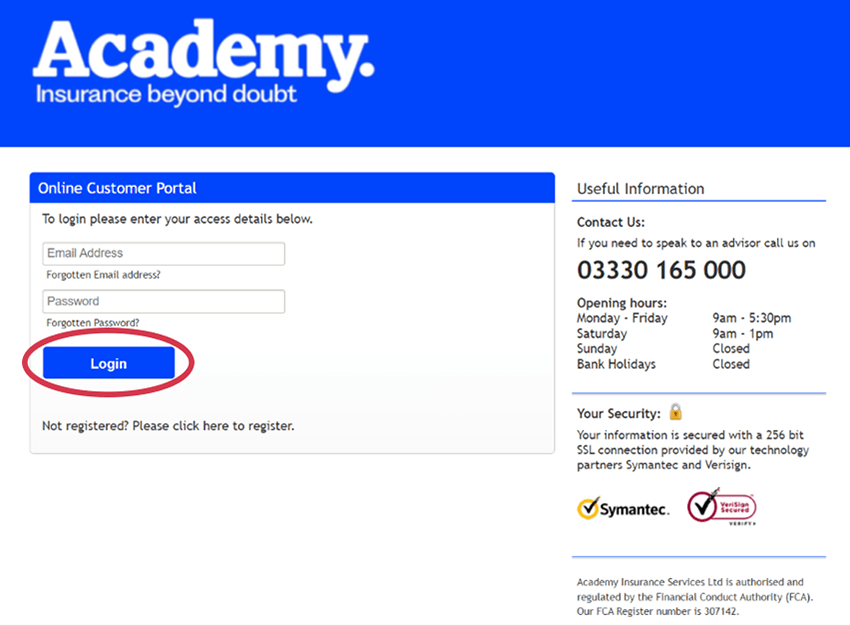
1. Click the link in your email or from the Academy website to open the Academy customer portal in your web browser.
2. If you have registered previously, login using your existing email address and password and click the Login button.
How to register and activate your account
If this is the first time you are accessing your documents online, you will need to register and activate your account.
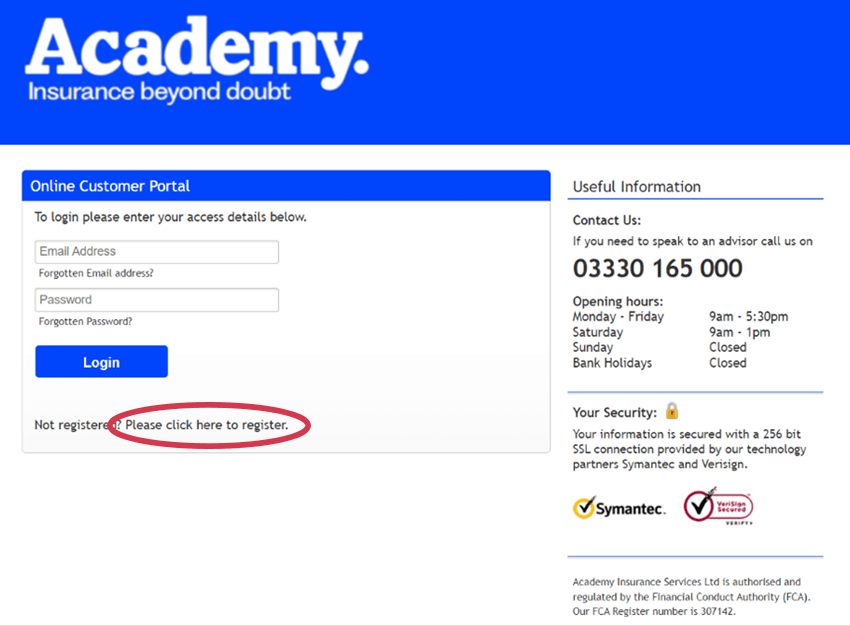
1. Click the link in your email or from the Academy website to open the Academy customer portal in your web browser.
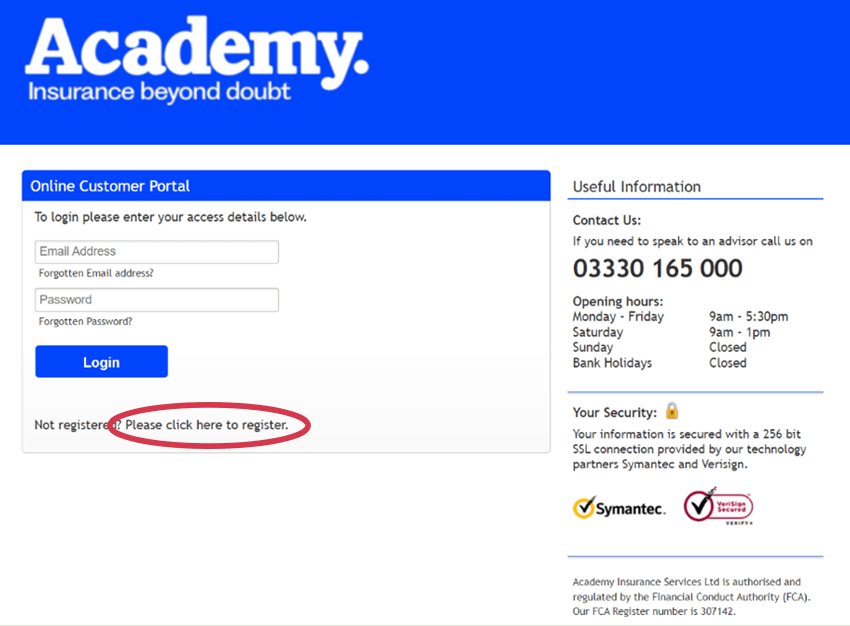
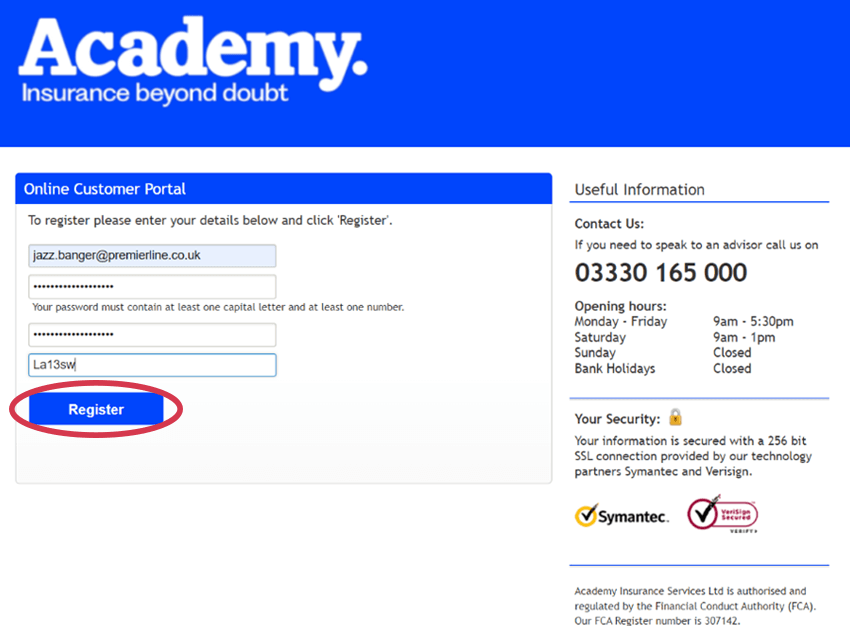
2. Under the Login button, click the link ‘Please click here to register’.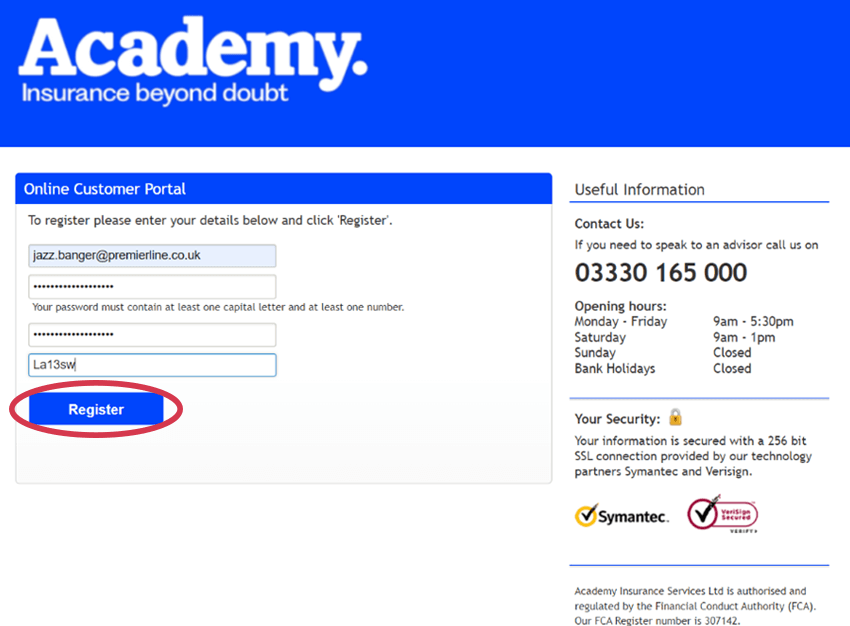
3. Next enter the email address we hold for you and create a secure password. Confirm the password again and then enter your postcode. Click the Register button.
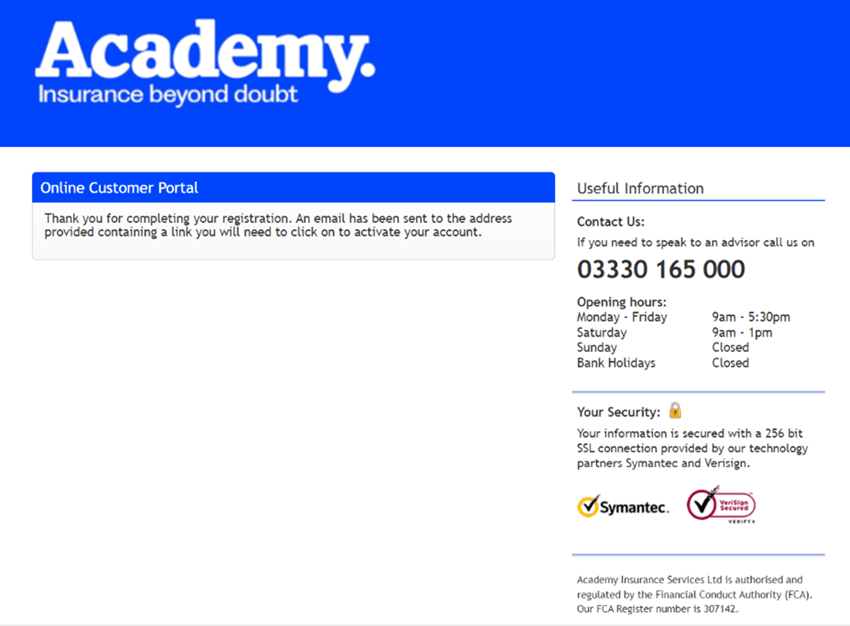
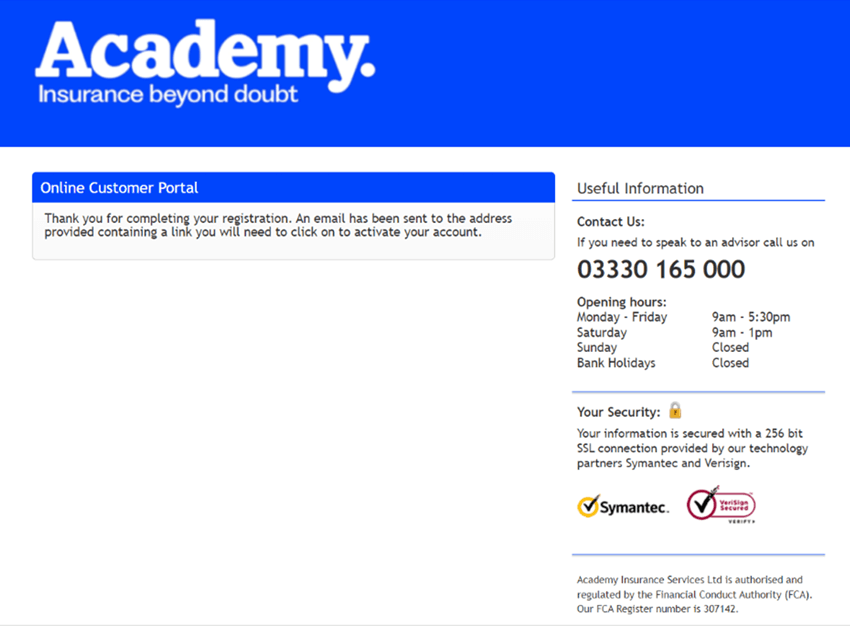
A thank you screen should appear to confirm registration.
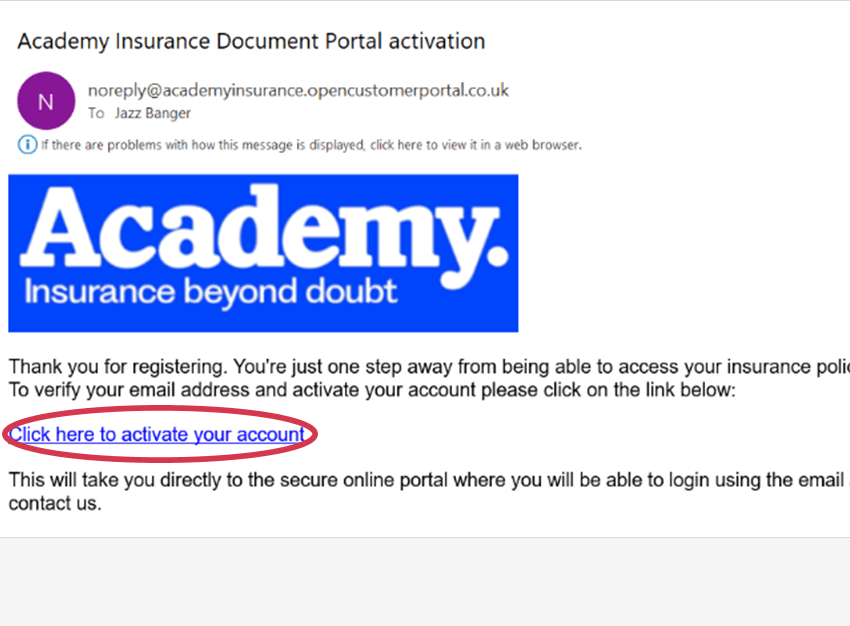
4. Check in your email inbox for an email titled ‘Activate your Academy customer portal’. It should appear within a few minutes. Don’t forget to check it hasn’t gone into your Junk emails.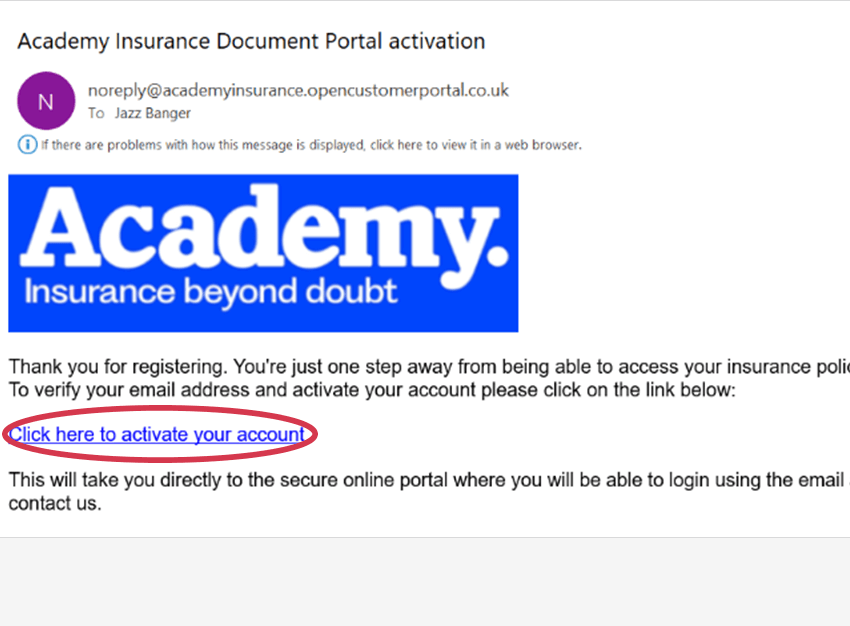
5. Click the link in the email to activate your account. If the link doesn’t open, right click on it and select ‘Copy Hyperlink’. Then simply open a new web browser, paste the link in and press enter to load the page.
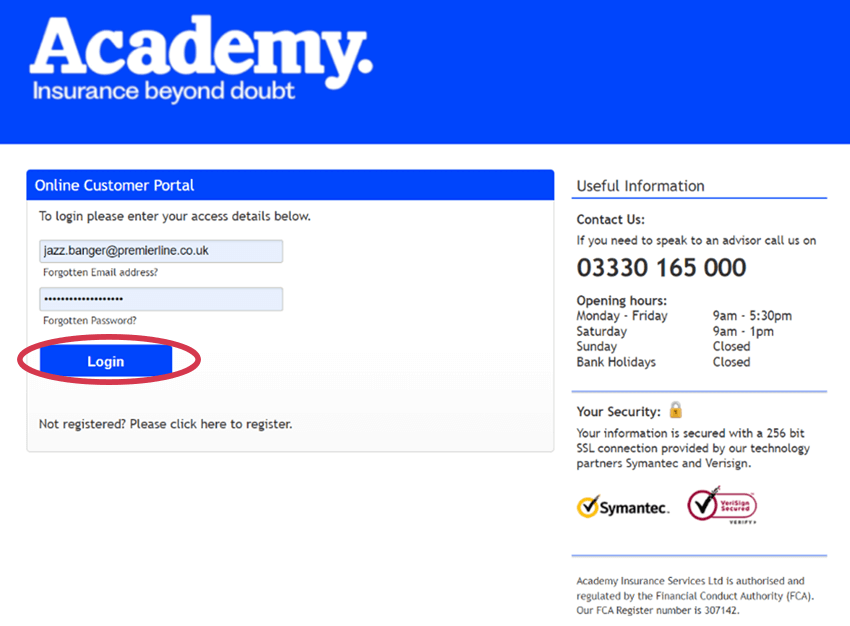
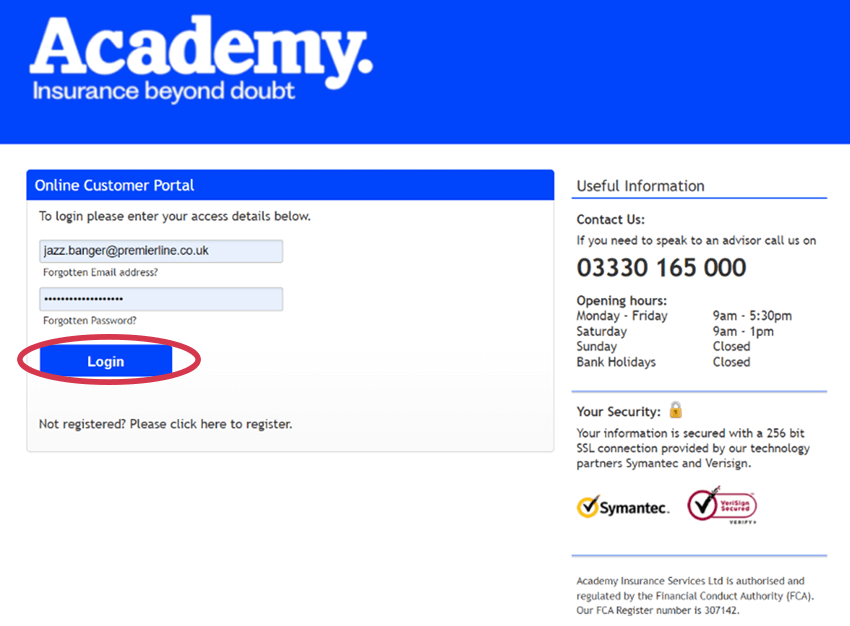
6. Enter your login details that you set a few minutes ago and click the Login button.
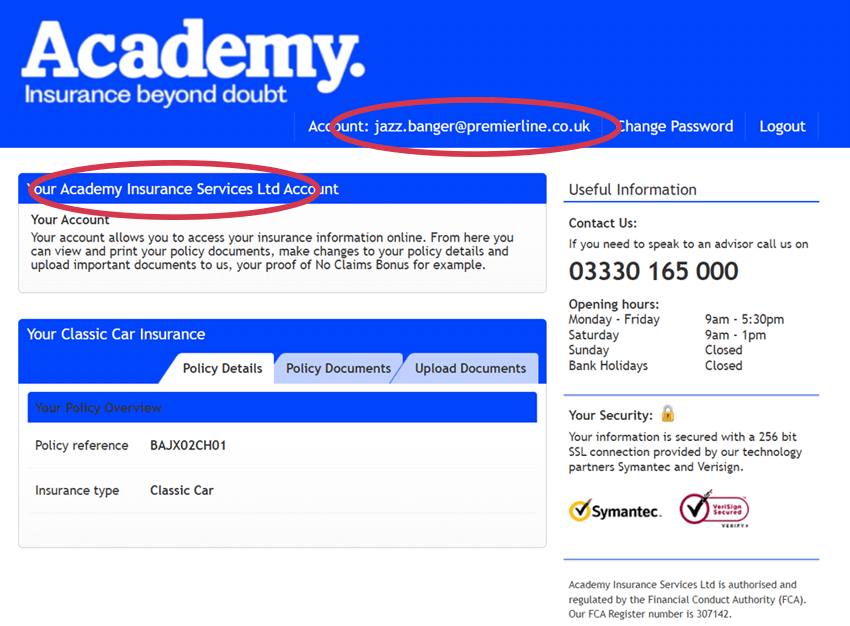
7. You are now logged into the Academy customer portal, where you can view and download your insurance documentation, upload information to us and renew your policy online.
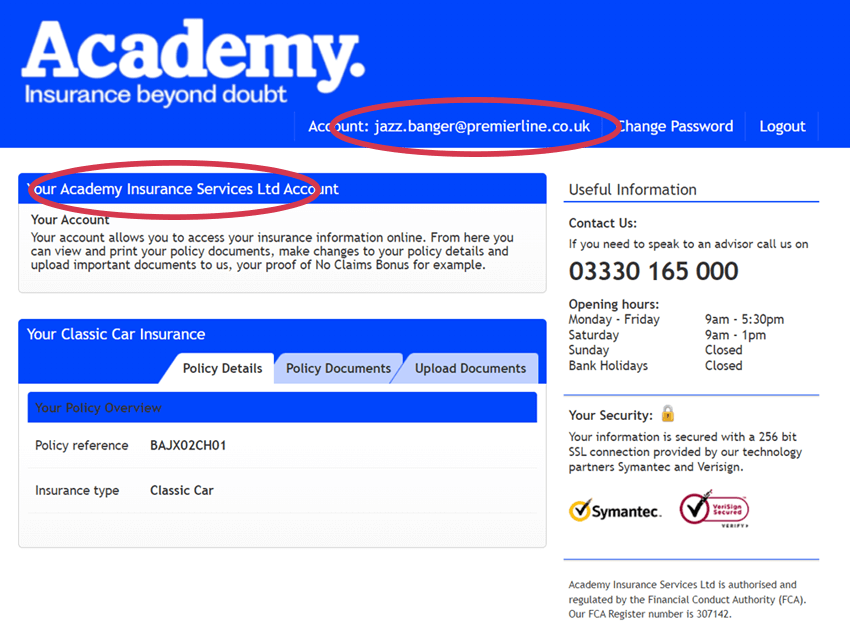
Once you have activated your account, check your email address and insured name is displayed correctly. If it is incorrect, please get in touch with the customer service team immediately.
How to change your password
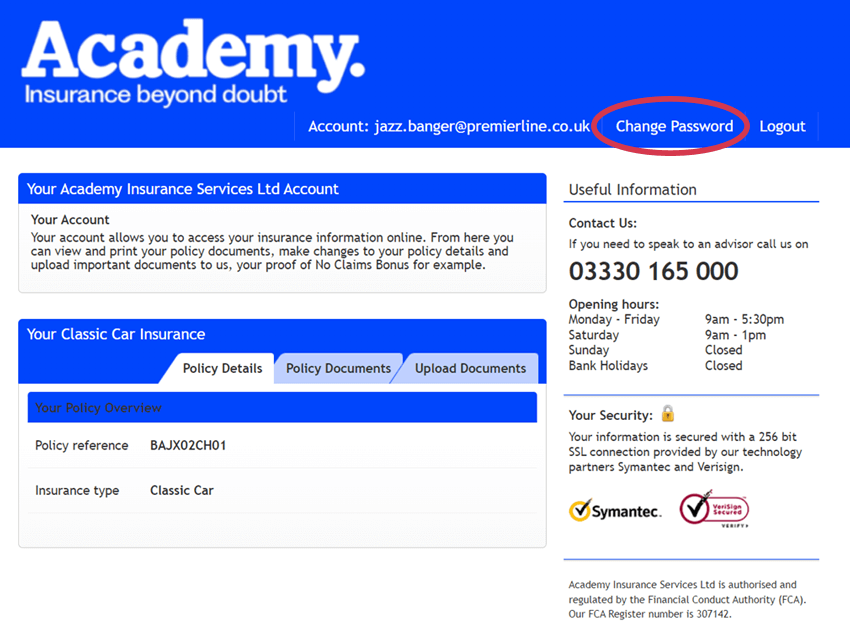
To change your password if you’re already logged into the Academy customer portal follow the steps below.
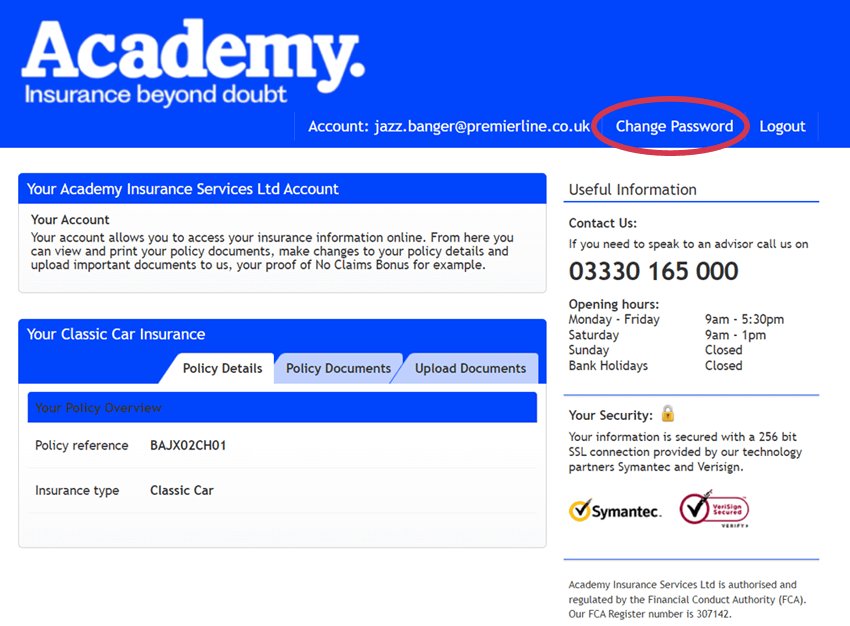
1. Click on the Change Password link from the navigation.
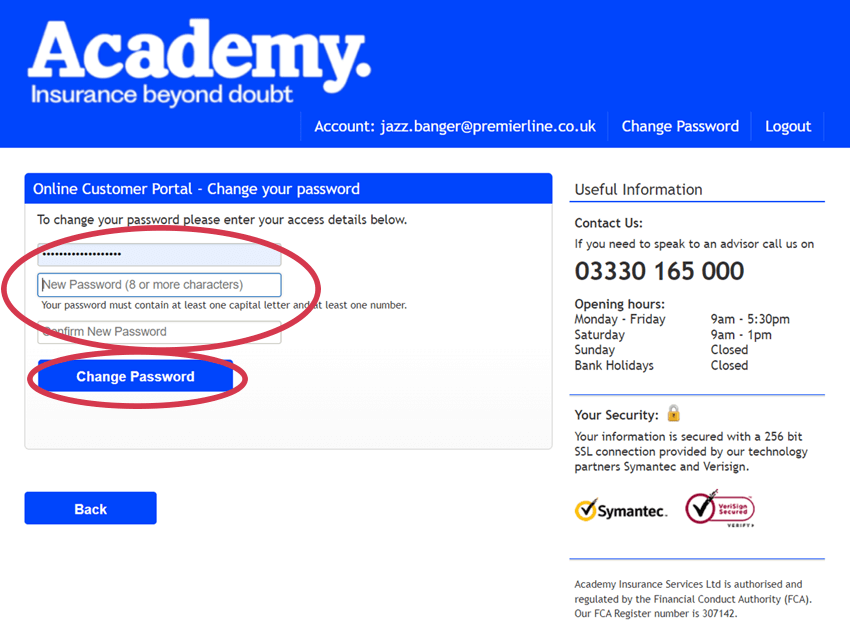
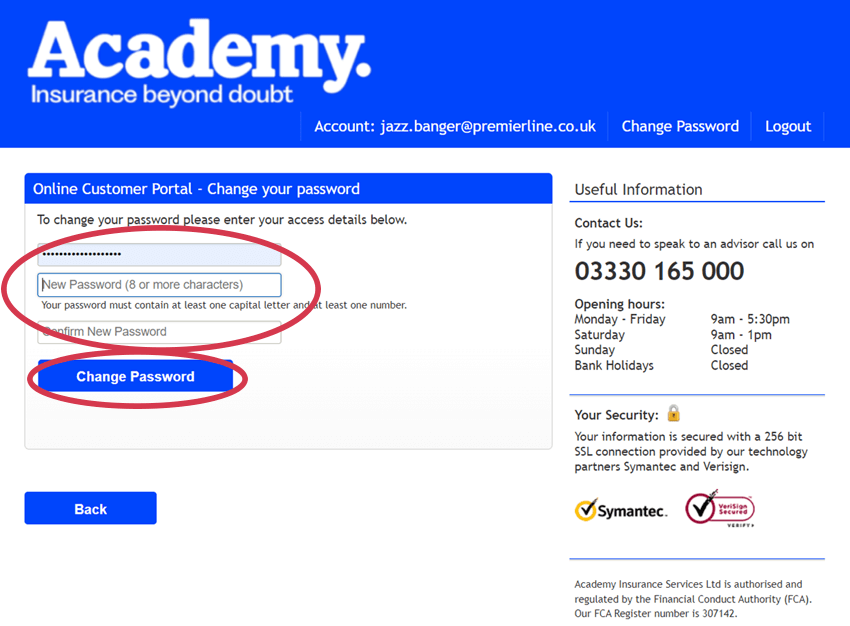
2. Enter your Current Password and then your New Password. Then click the Change Password button.
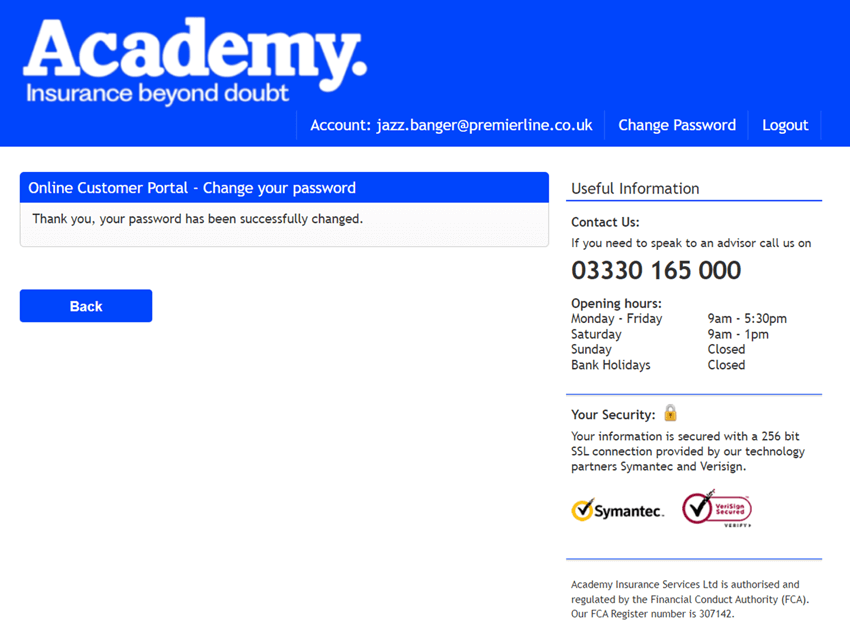
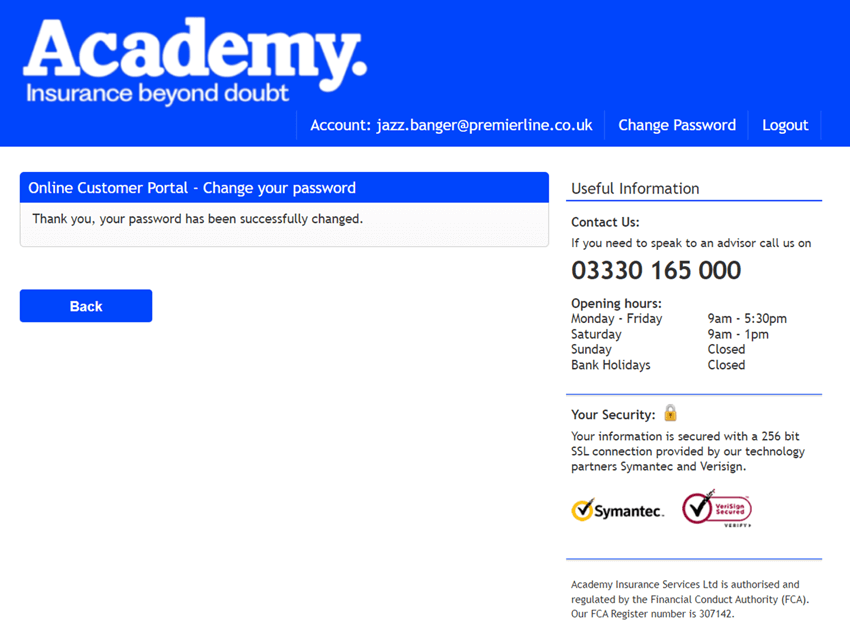
A confirmation screen should appear to confirm your have successfully changed your password.
How to reset a forgotten password
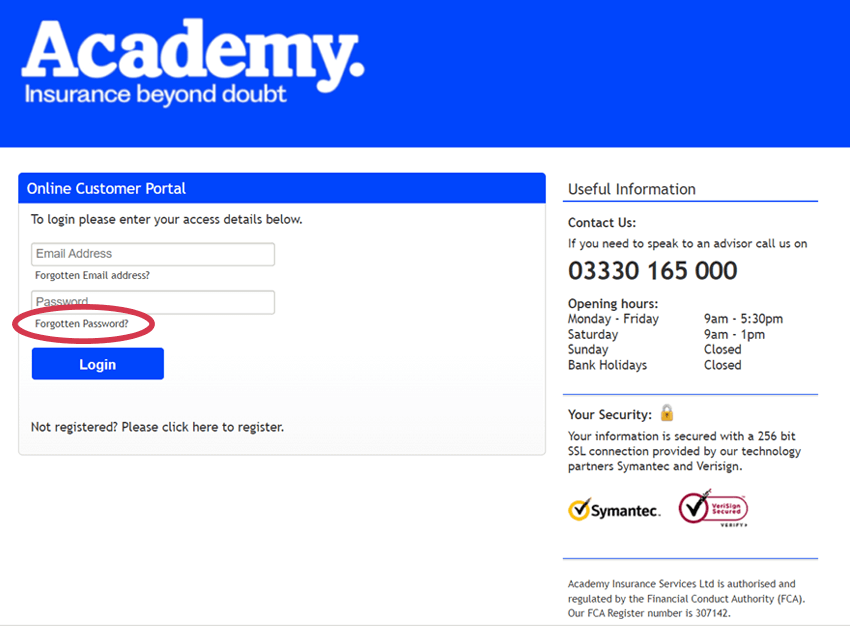
If you can’t remember your password, you can reset it from the Academy customer portal login page.
1. Click on the Forgotten Password? link above the Login button.
2. You will need to re-register for My Portal. Follow on from step 3 on the How to register and activate your account guide.
How to view your policy and insurance documents
The Academy customer portal allows you to view and download your insurance documentation.
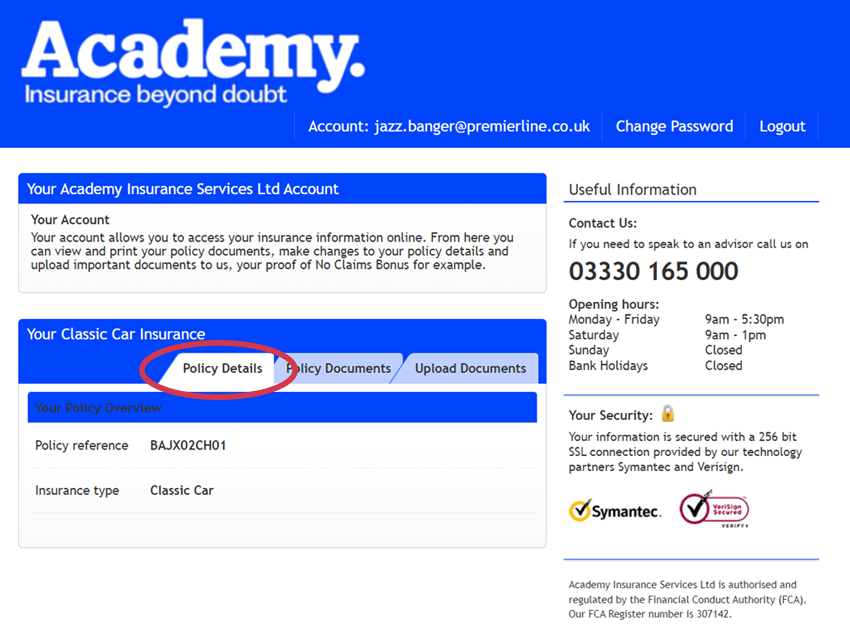
1. Click the link in your email or from the website to open the portal in your web browser. Login if you have previously registered.
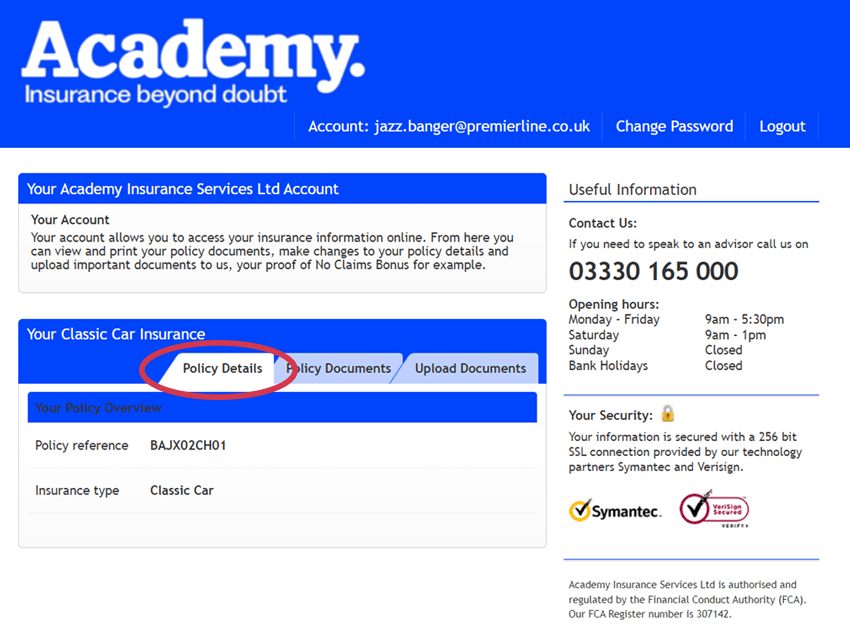
2. Select the policy and click on the Policy Details tab. From here you will see the Policy Overview which includes your policy reference number and the type of policy you have.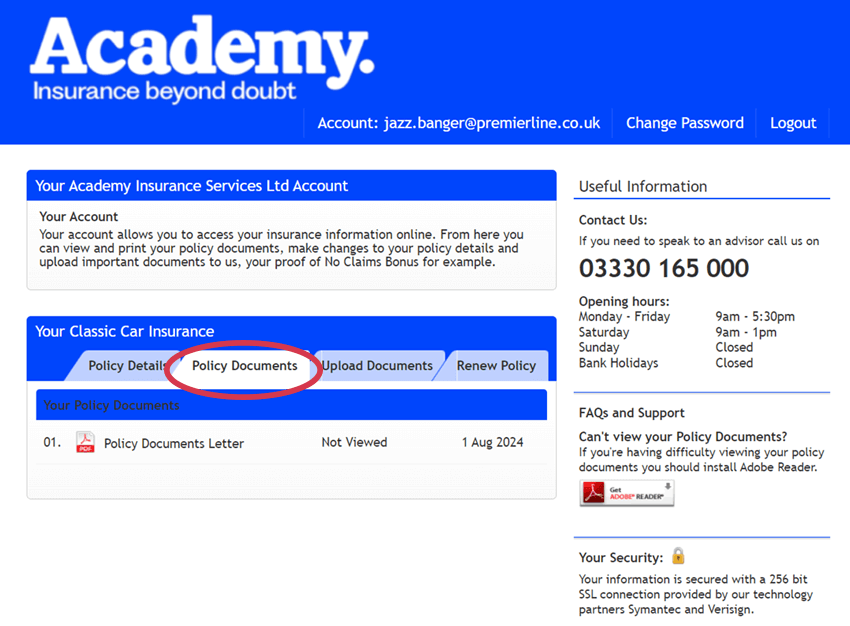
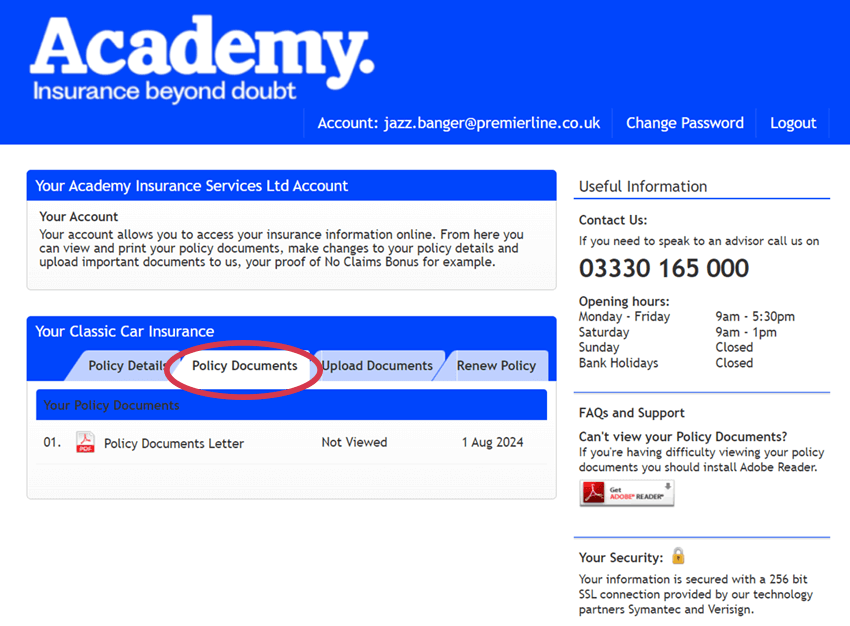
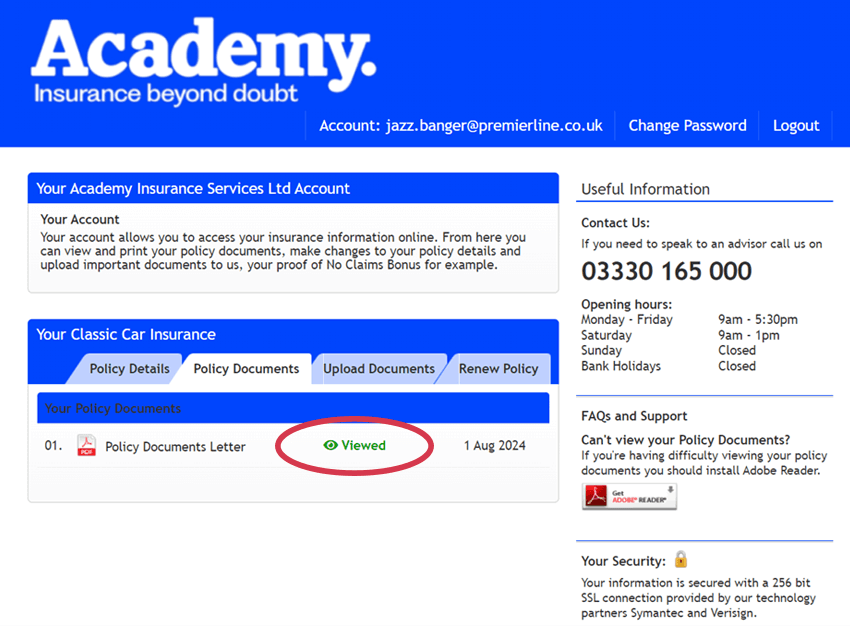
3. Under the Policy Documents tab, you will see your policy documents with the dates they were uploaded. The documents are listed with the most recent at the top. There is also an indicator next to each document that tells you if you have viewed it previously or whether it is new and needs your attention.
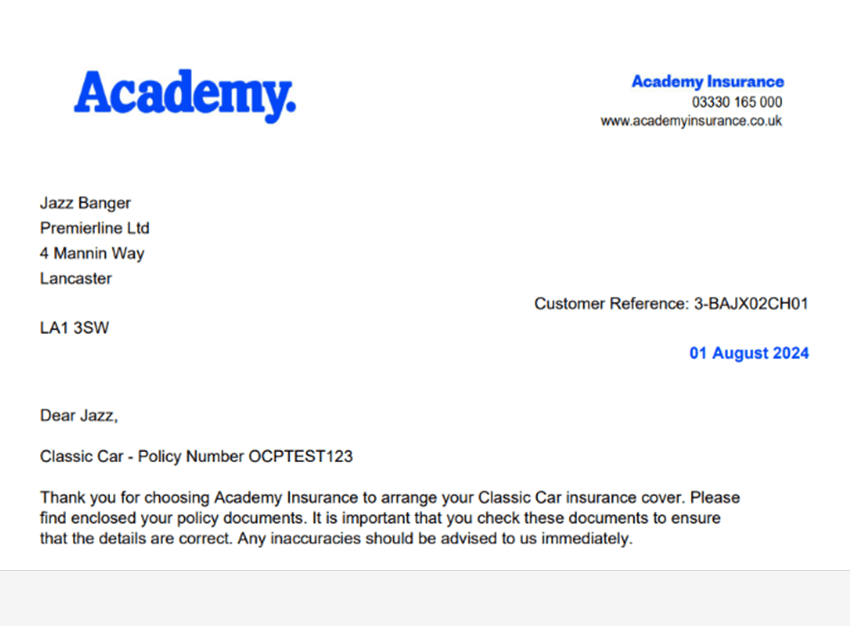
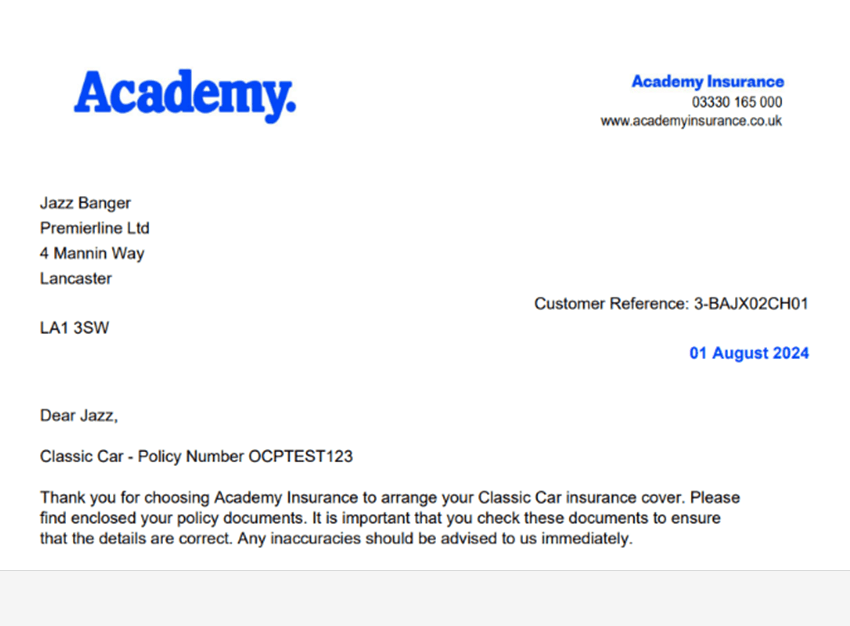
4. To view the document, simply click the file icon or document name. It should open in a web browser or relevant application.
If the document doesn’t open, for PDF documents, you might need to install Adobe Reader.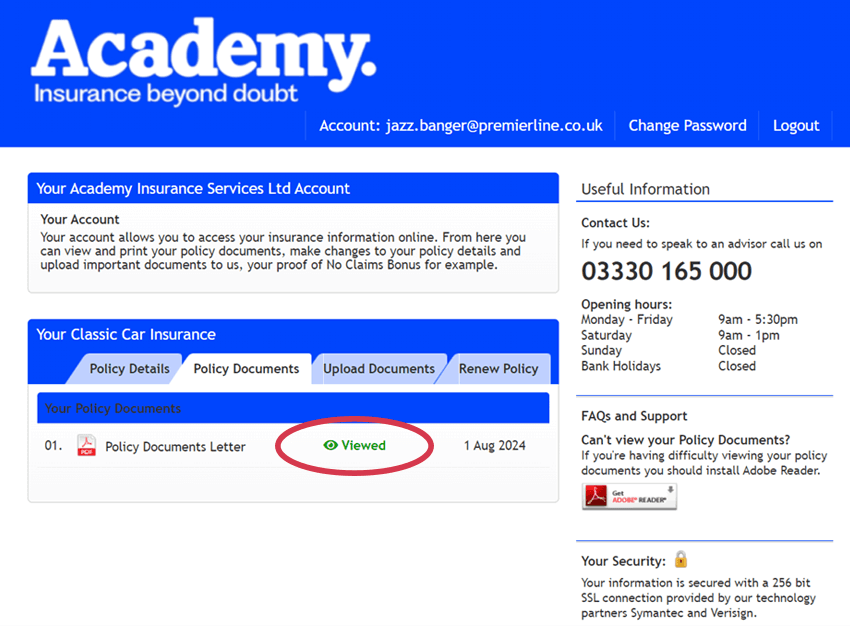
5. Click the link in the email to activate your account. If the link doesn’t open, right click on it and select ‘Copy Hyperlink’. Then simply open a new web browser, paste the link in and press enter to load the page.
If you don't have an account for My Portal, please follow the How to register and activate your account instructions.
Note – if there are no documents, please get in touch with the customer service team immediately.
How to upload documents
The Academy customer portal allows you to securely upload documents that we have requested or that you wish to share with us. For example, this could be a copy of your driving licence or proof of no claims bonus. You can upload documents as pdf or image files, or clear photographs in standard image formats (png, jpg, or tif), up to a maximum of 4mb per file. Just make sure the information in the file is legible.
Responding to a document request
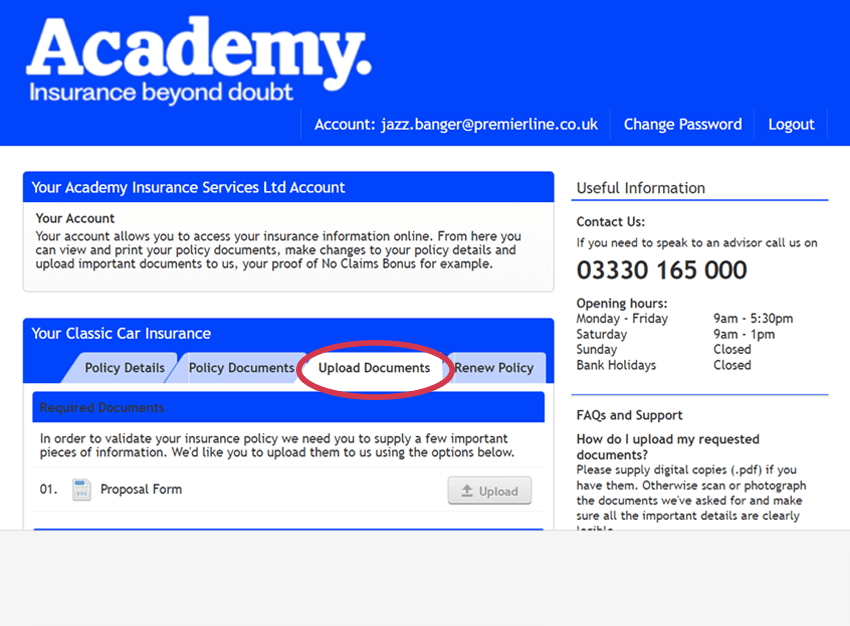
1. Login if you have previously registered. If you haven’t, please follow the How to register and activate your account instructions.
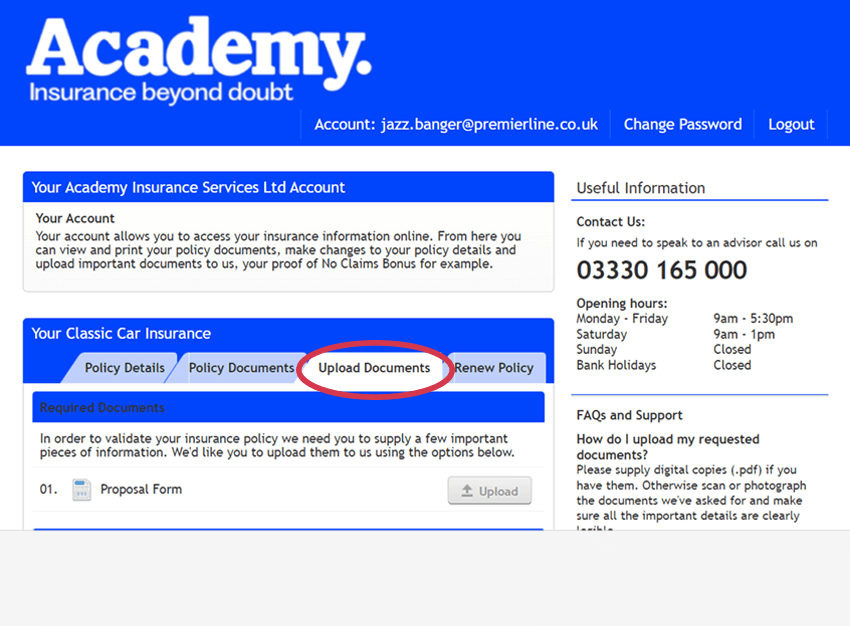
2. Select the policy (if you have more than one) and click on the Upload Documents tab.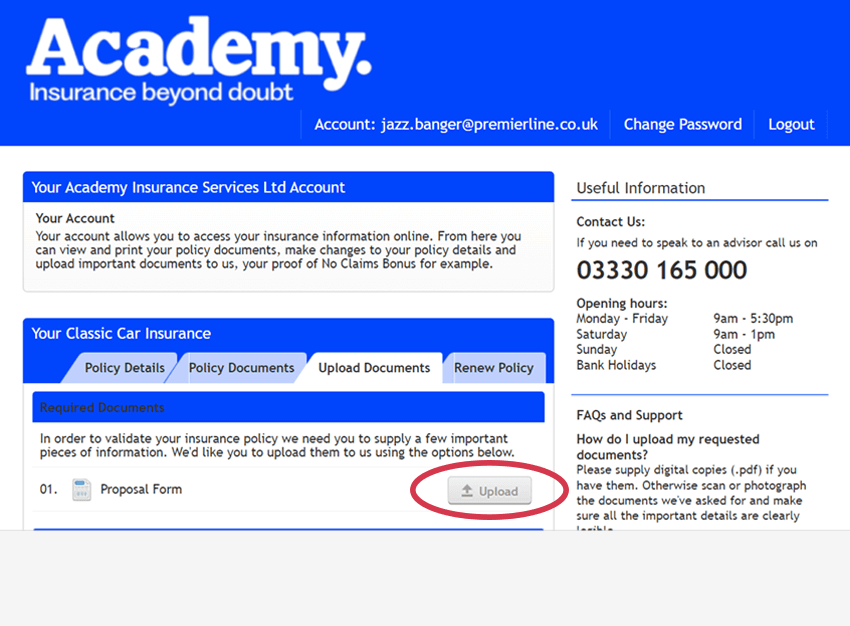
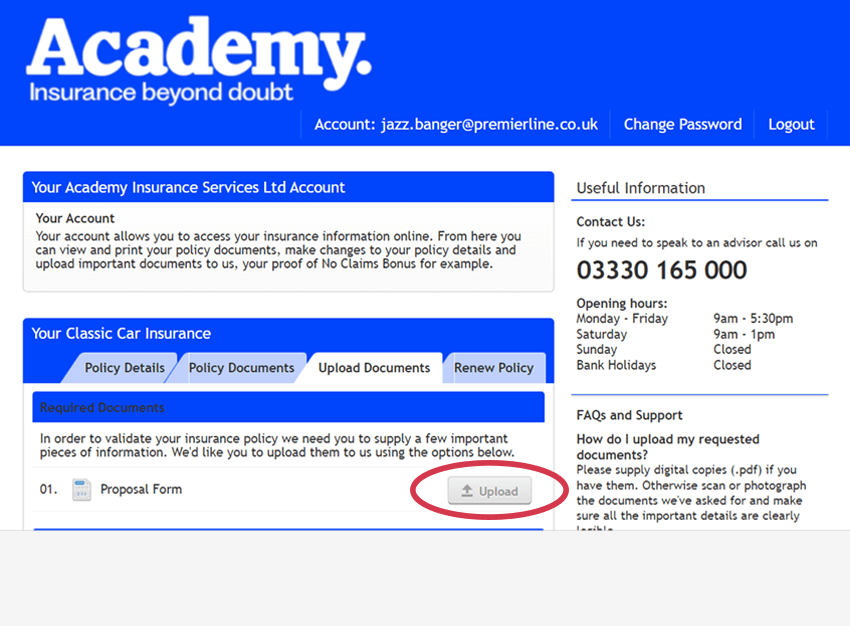
3. In the ‘Required Documents’ area, you will see if we have requested any documents. In this example a completed proposal form is required. Click on the Upload button next to the document type requested.
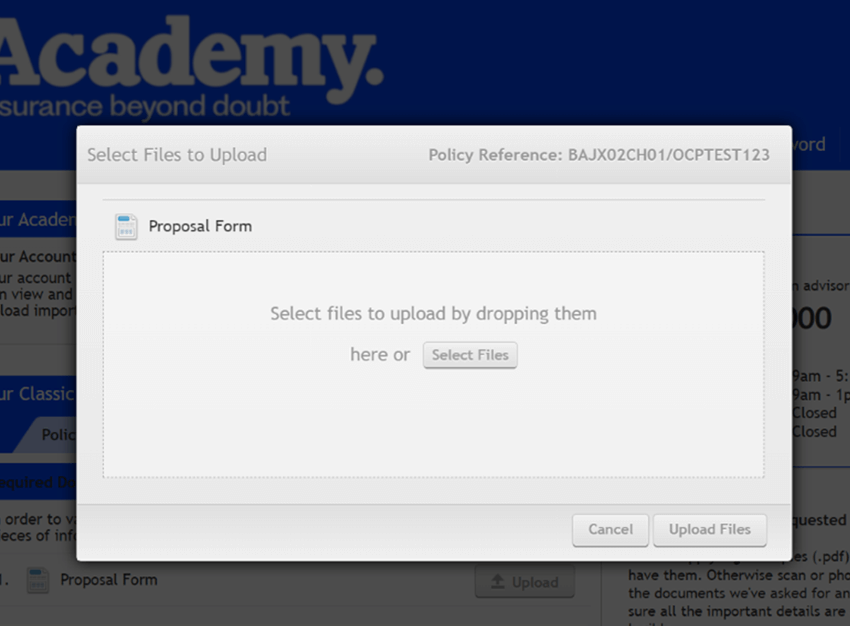
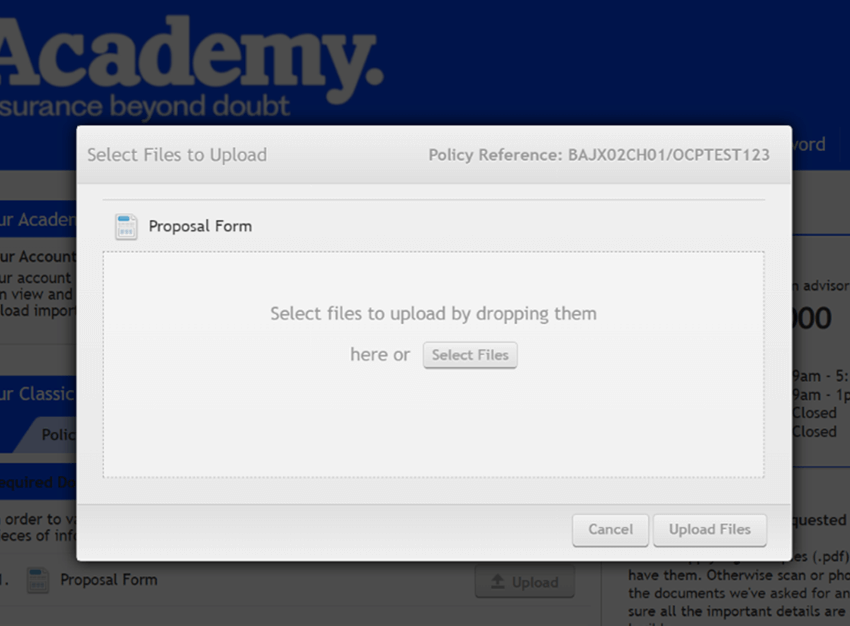
4. When the ‘Select Files to Upload’ window opens, you can either drop a file in the window, or click in the window to locate the file you’d like to upload.
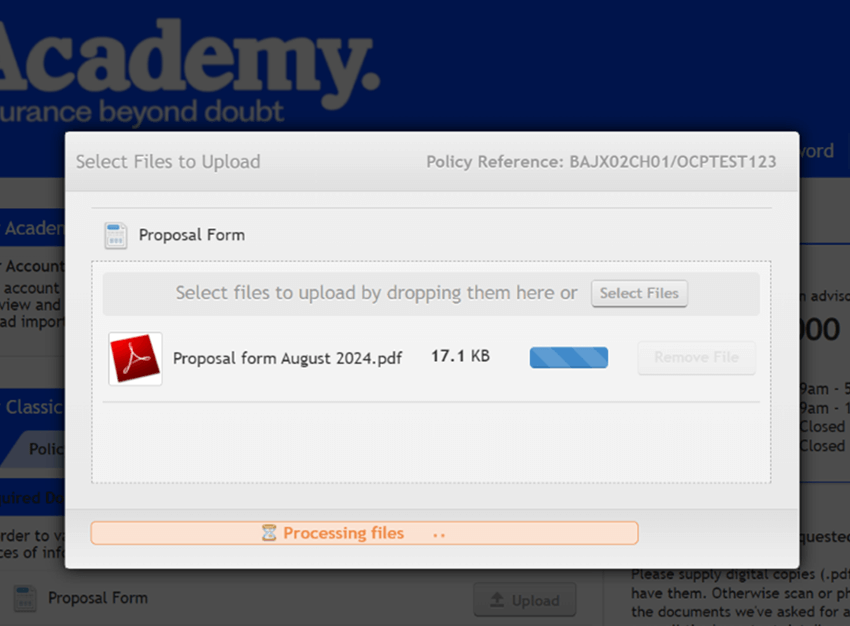
If you click in the window, a File Explorer window will open. Select the file and click the Open button for the file to appear. Then click the Upload Files button.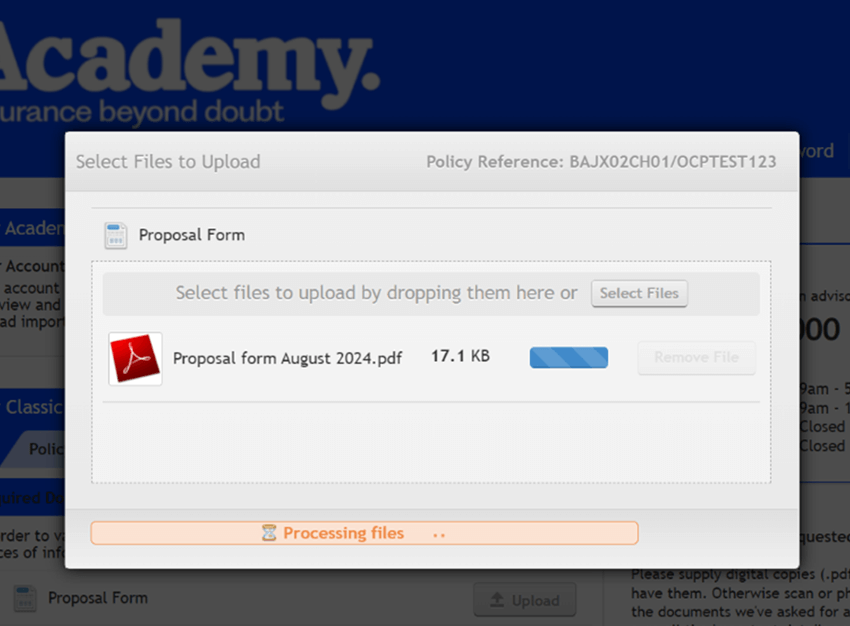
The file will upload to the portal as shown here.
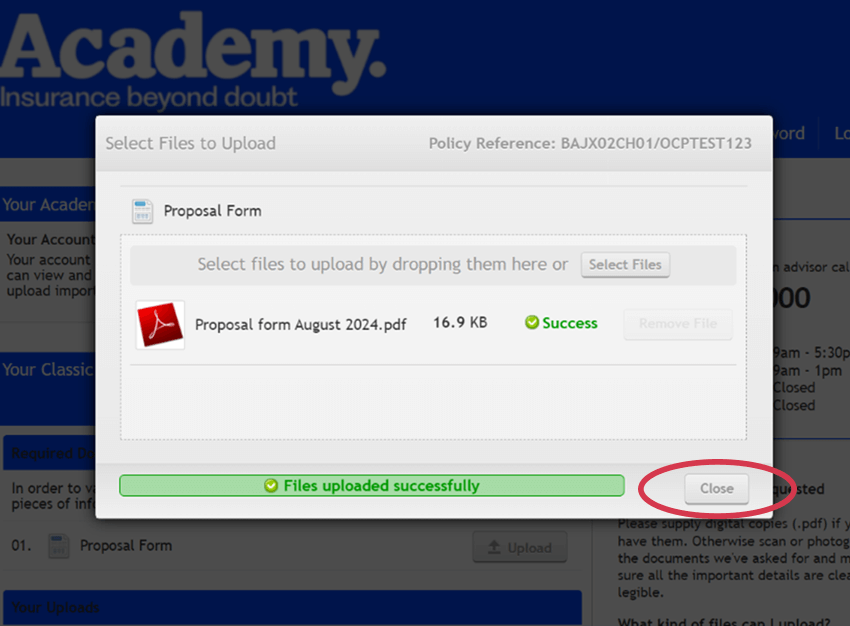
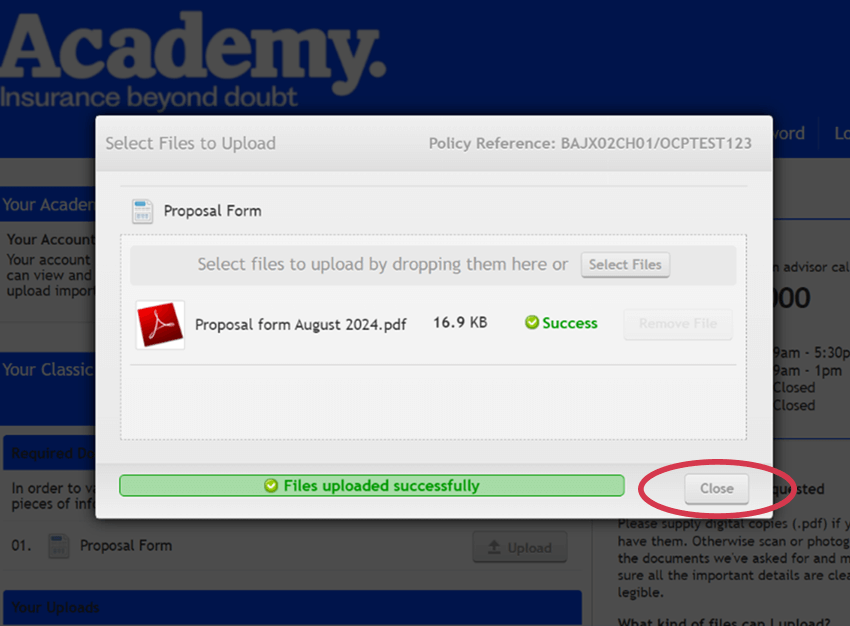
5. When the file has successfully uploaded to the portal, there will be 2 green indicators as shown in image above.
You can now click the Close button.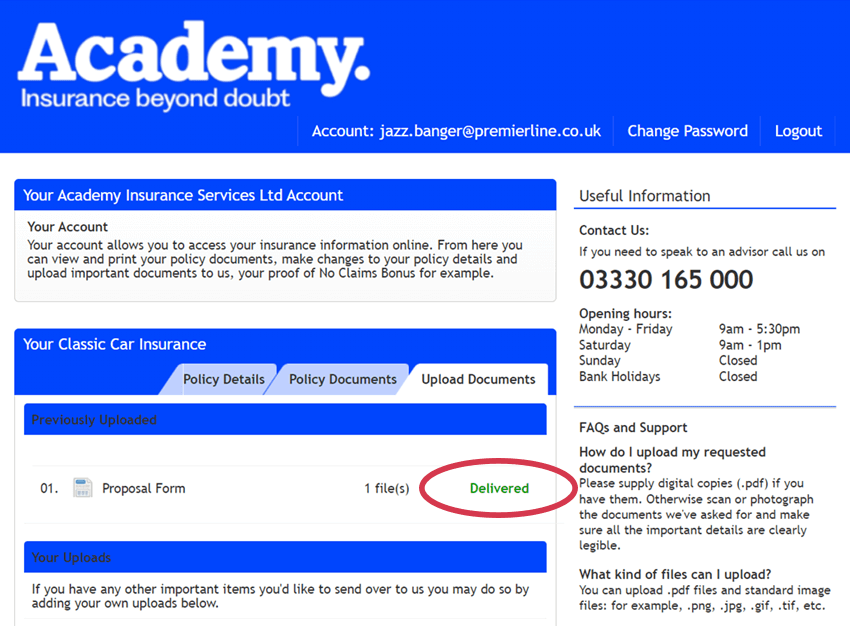
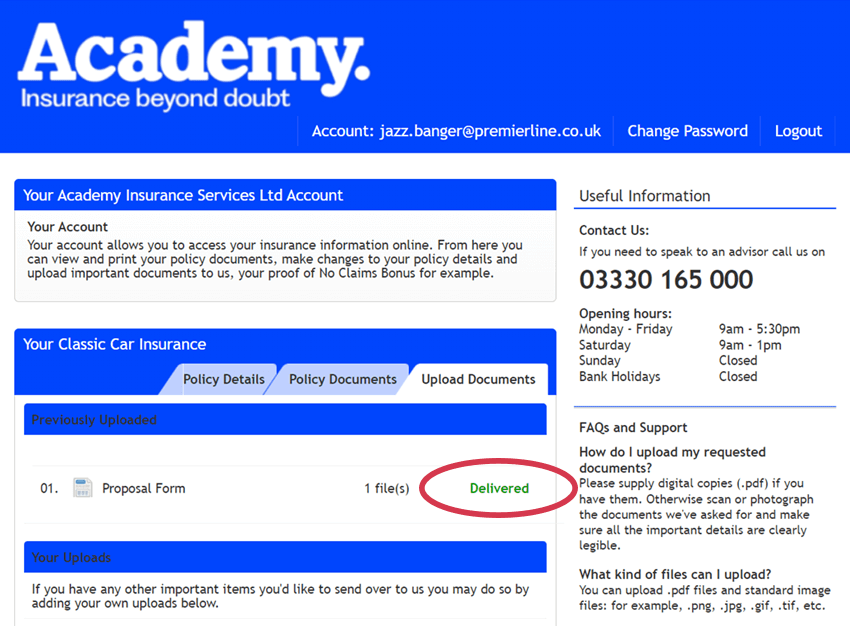
When you return to the portal, you will notice that a green indicator ‘Delivered’ appears next to the requested document in the ‘Previously Uploaded’ area.
How to renew and pay for your policy
The Academy customer portal may allow you to renew your policy online using the same payment method you used last year.
Before you continue, please read all the renewal documentation provided. If any changes are required, please contact the Academy customer service team immediately. If everything is correct and meets your needs, you can continue to renew online.
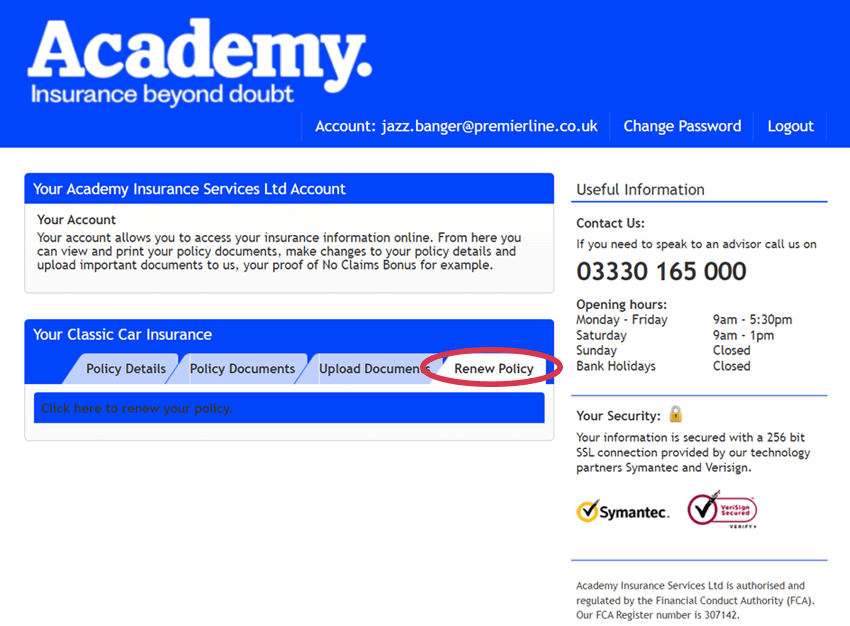
1. Login if you have previously registered. If you haven’t, please follow the How to register and activate your account guide.
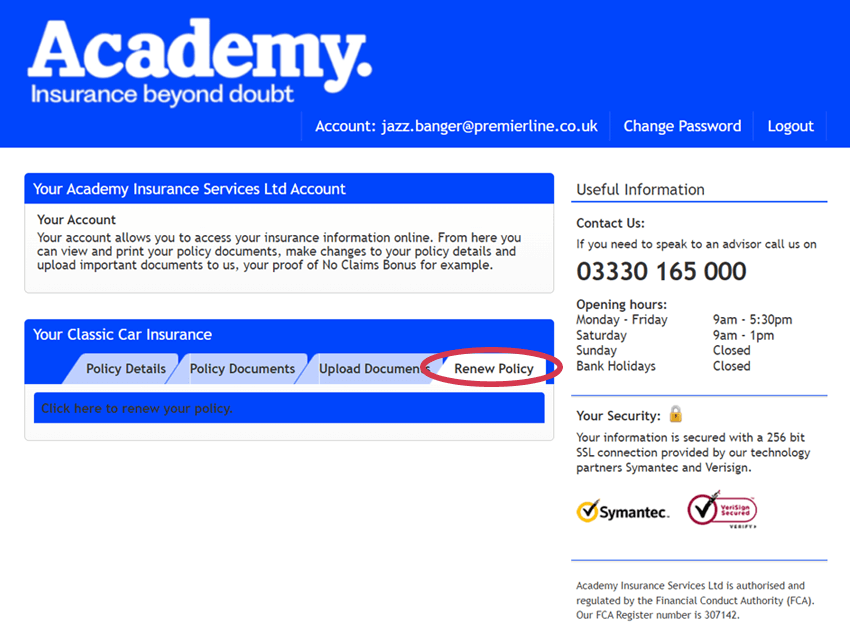
2. Select the policy and click on the Renew Policy tab. If the ‘Renew Policy’ option is not visible you may not be able to renew online. Instead, please contact us.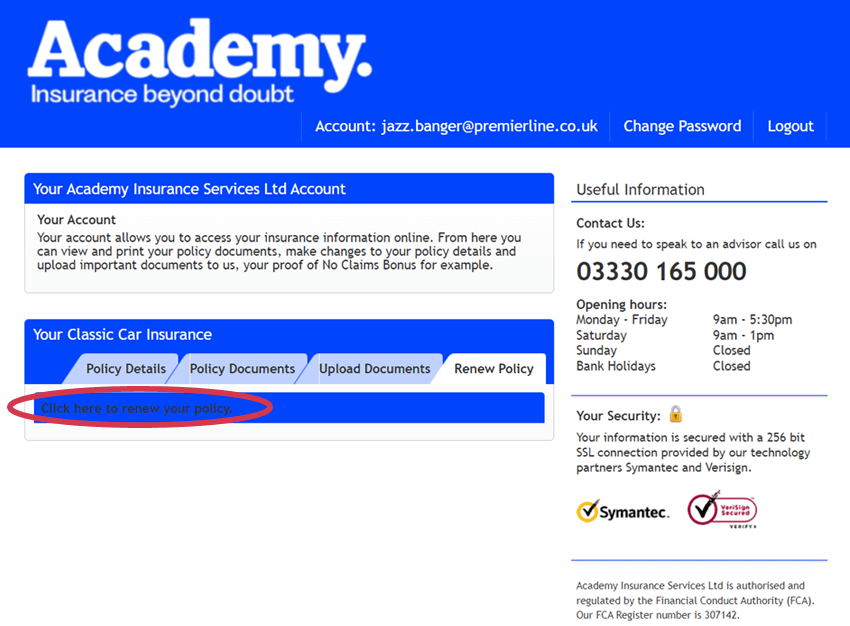
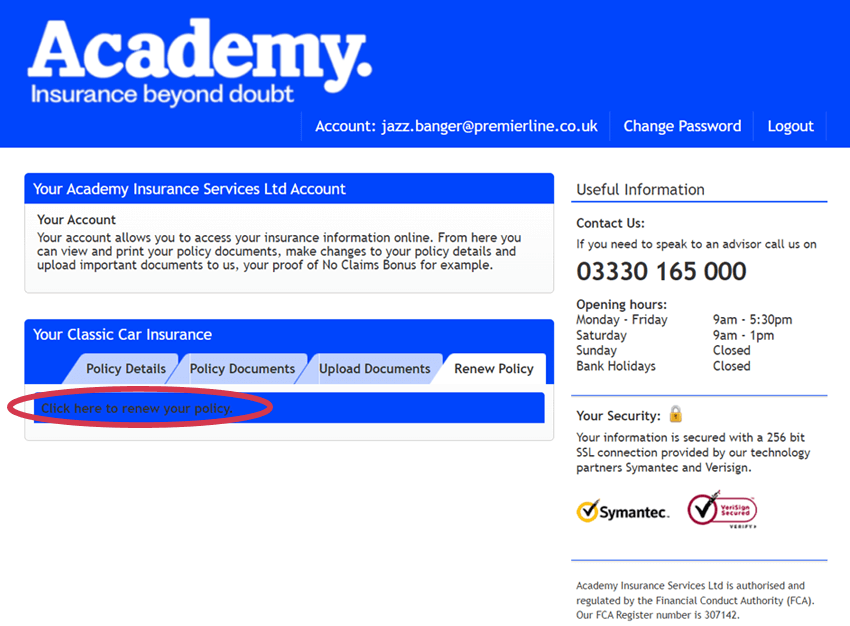
3. Next, select the Click here to renew your policy link.
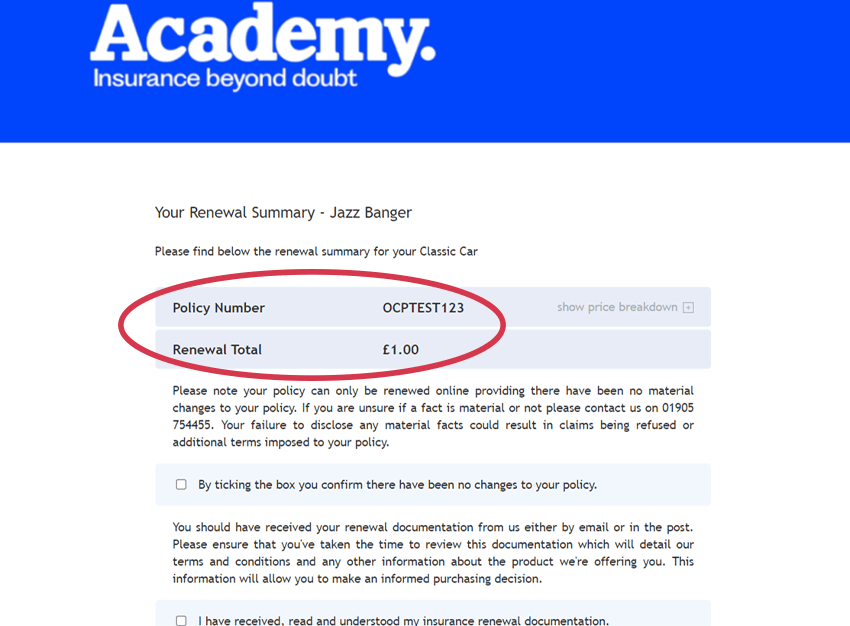
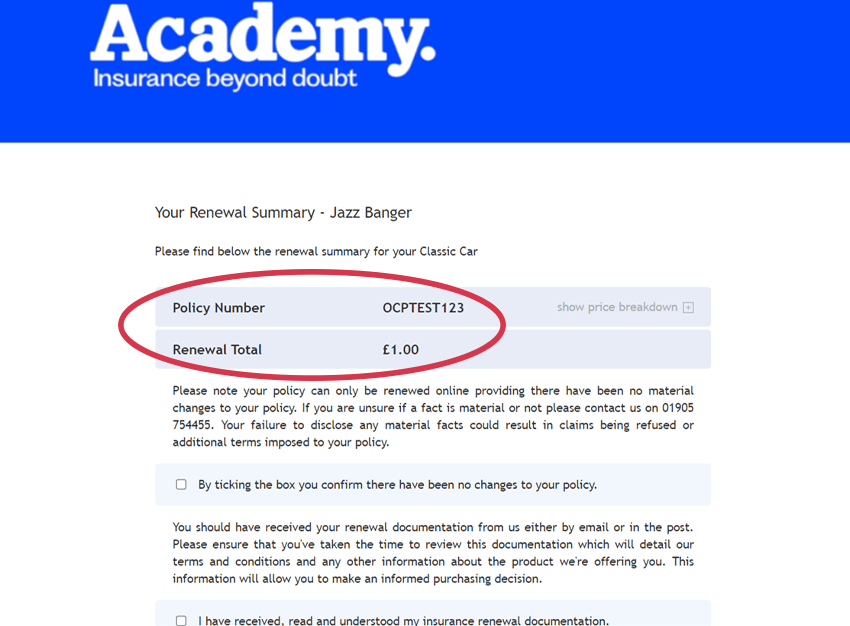
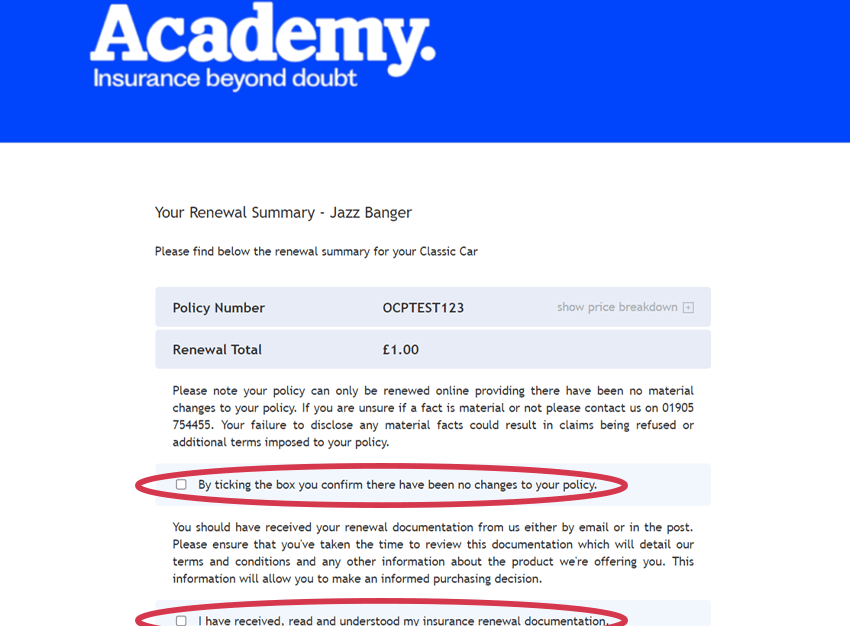
4. You will see a Renewal Summary for your policy open in a separate browser window.
Please check the policy number and renewal total. You can click the cross to see the price breakdown.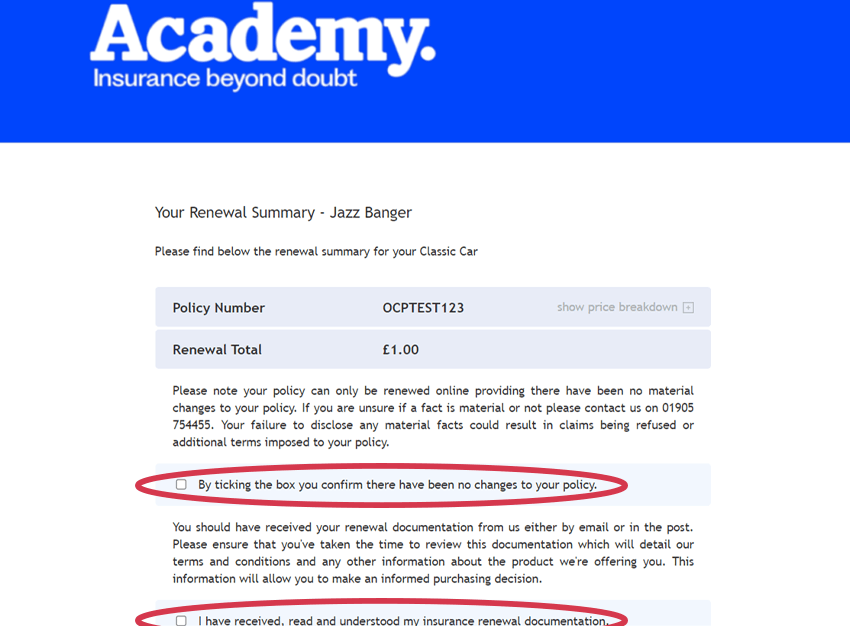
5. Read the declarations and confirm your acceptance by checking the boxes. If anything needs changing, please contact us.
If you haven’t read your renewal documentation please view your documents in the Policy Documents area of the portal and then return to the check boxes.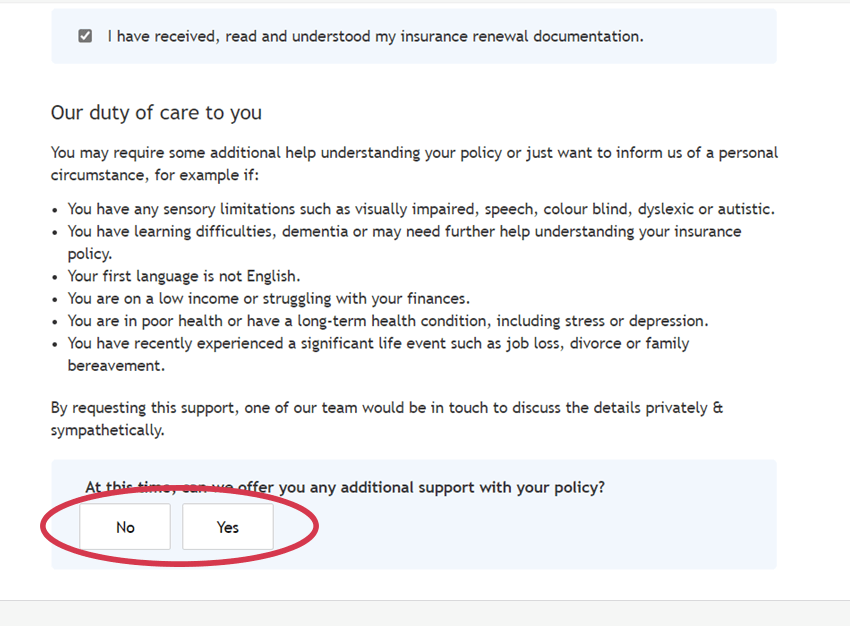
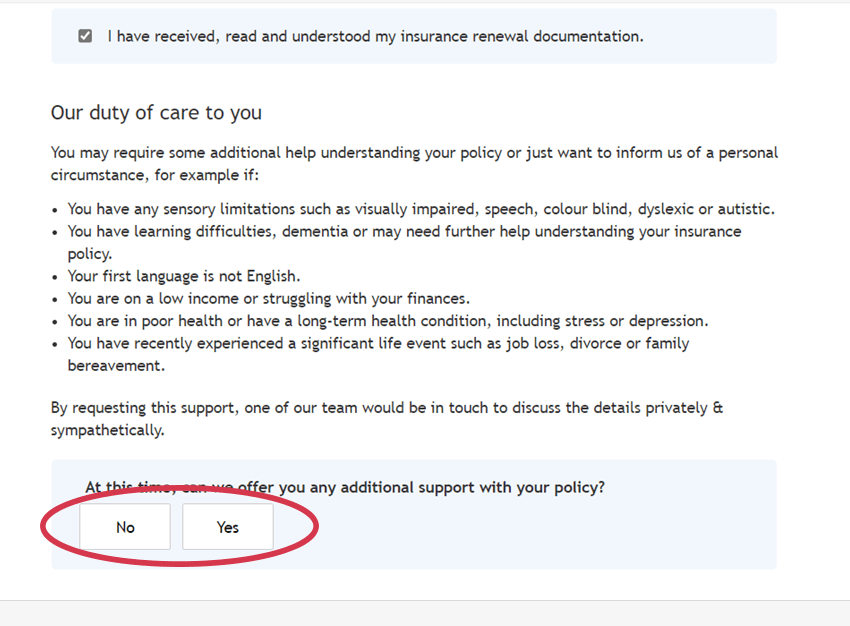
6. We offer additional support for those customers that need it. Please confirm if this is required. If yes, simply get in touch with our Academy customer service team on 0333 016 5000.
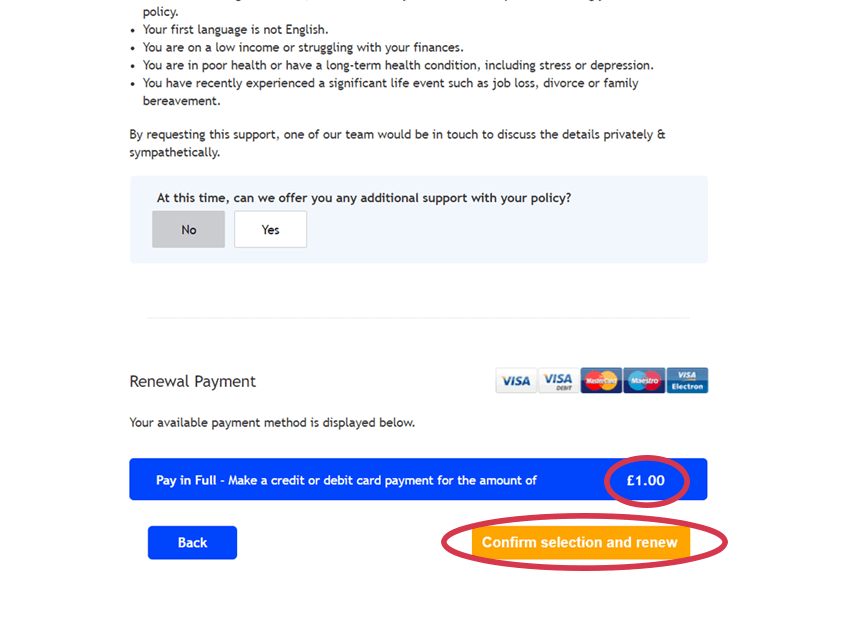
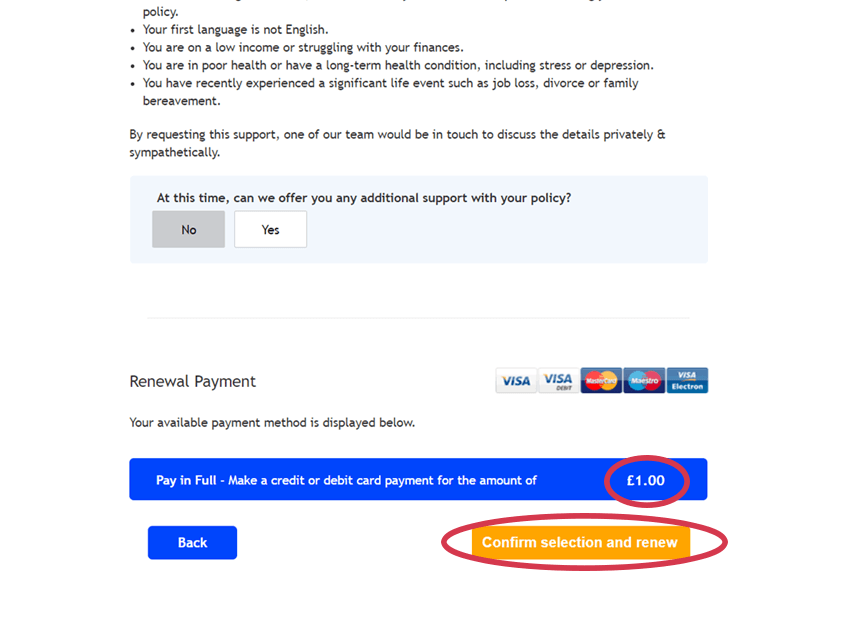
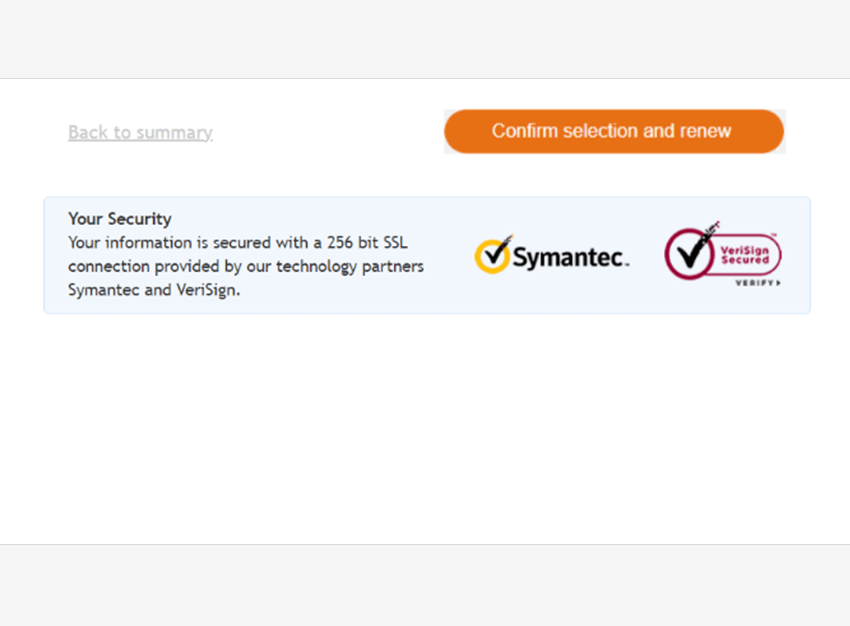
7. You are now ready to pay for your policy using a credit/debit card. Check the amount is correct and click the Confirm selection and renew button.
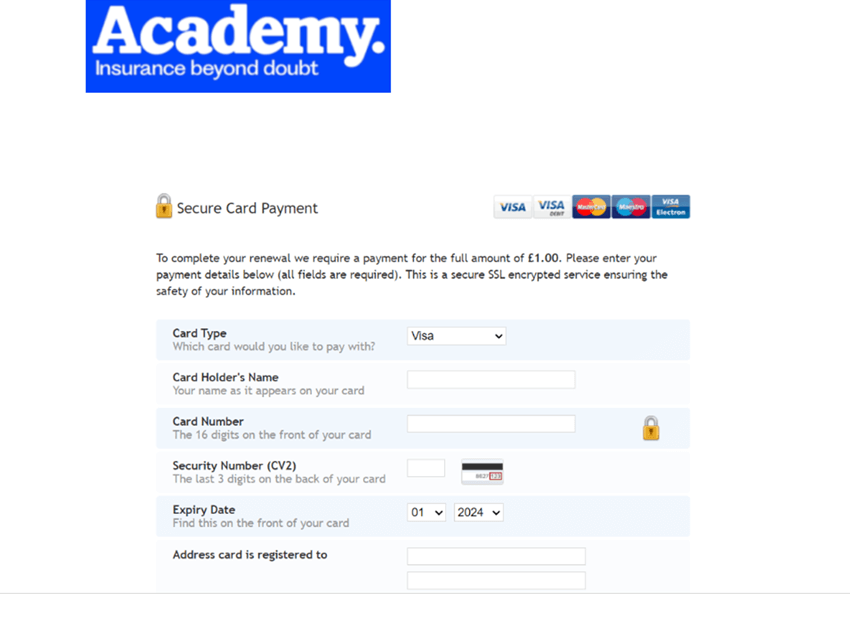
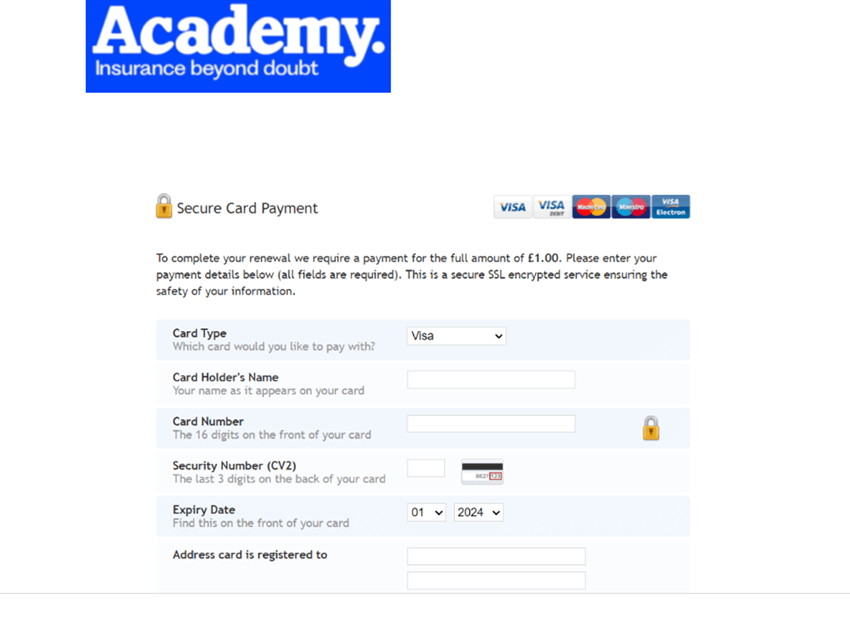
8. You will be redirected to a secure payment provider. Please check the amount and enter your card details.
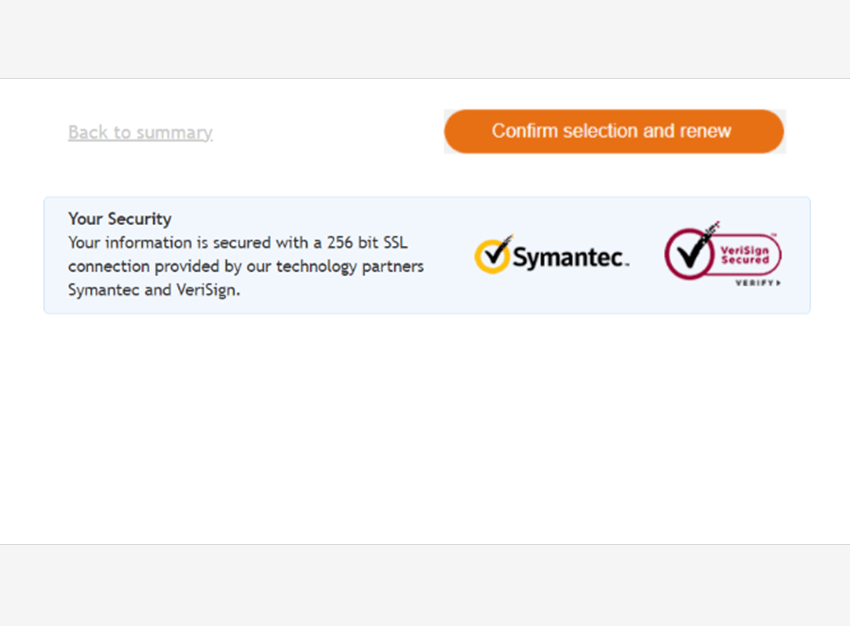
9. Next click the Confirm selection and renew button.
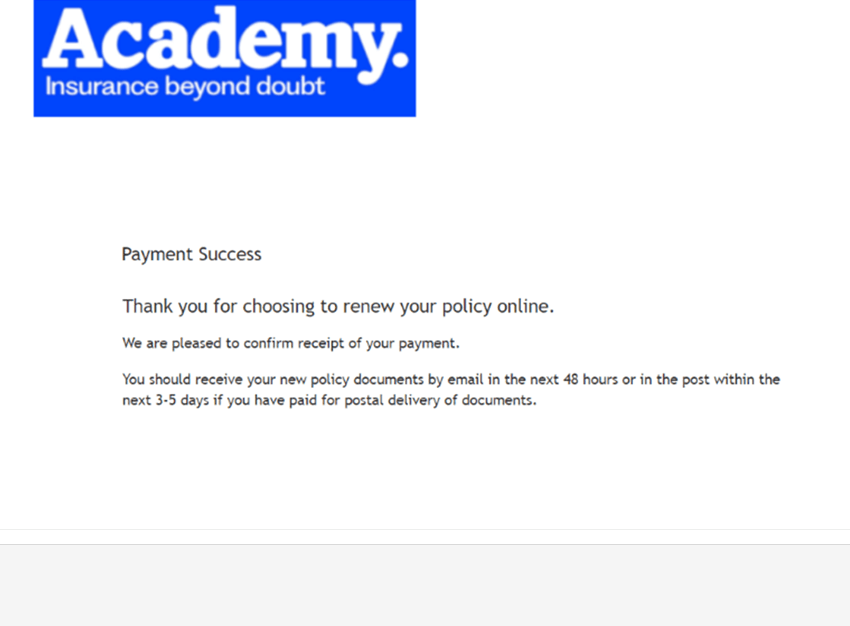
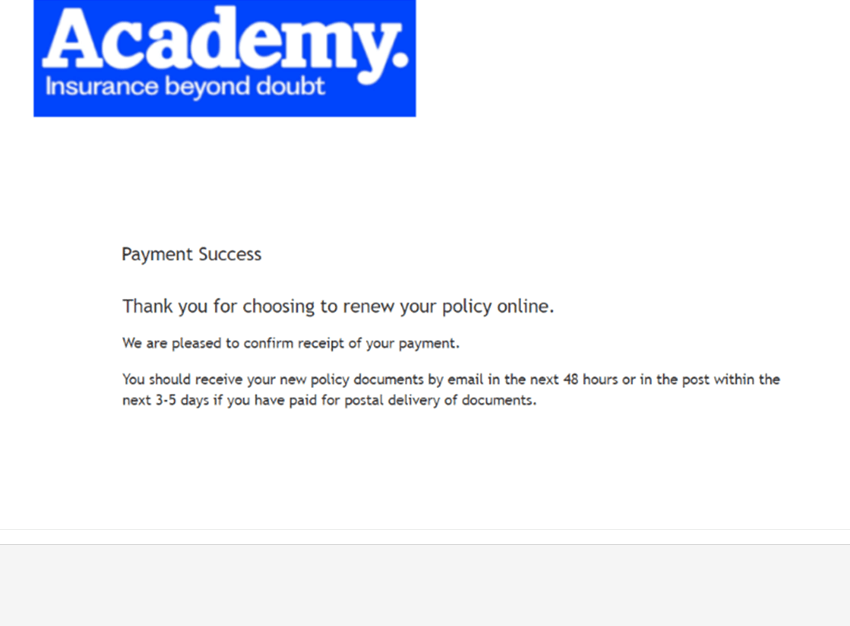
10. Please wait for the payment to process for a few minutes. Try not to refresh the page. When the payment has been accepted, you’ll receive confirmation on-screen.
You’ll also receive a confirmation email. Check your inbox for an email, titled ‘Thank you for renewing with Academy Insurance’.
Note: Once your have made your payment, your payment confirmation email should be received within a few minutes. Don’t forget to check it hasn’t gone into your Junk emails. If you haven’t received it in 15 minutes, please get in touch with the Academy team.
Always here to help
Talk to us and know your world is protected. Beyond doubt.
Contact Us